


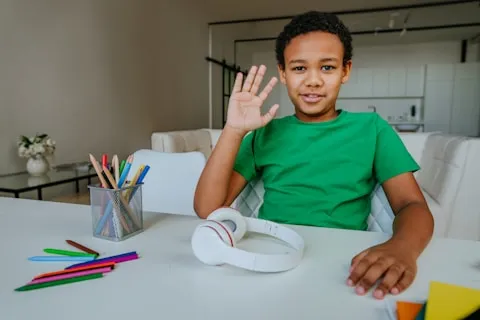

How to Join a Lesson
Joining your online lesson on Aatinee is simple. Follow these steps for a smooth experience.
Before the Lesson
System Requirements
- Stable internet connection (minimum 5 Mbps)
- Modern web browser (Chrome, Firefox, Safari, Edge)
- Working webcam and microphone
- Quiet learning environment
Preparation Checklist
- ✅ Test your audio and video
- ✅ Charge your device or plug in
- ✅ Have your learning materials ready
- ✅ Find a quiet, well-lit space
- ✅ Log in 5 minutes early
Joining Your Lesson
Step 1: Access Your Dashboard
- Log in to your Aatinee account
- Go to “My Lessons” or “Dashboard”
- Find your upcoming lesson
Step 2: Join the Meeting
- Click “Join Lesson” button (appears 10 minutes before start time)
- Allow camera and microphone permissions
- Test your audio and video
- Click “Enter Lesson”
Step 3: Wait for Teacher
- You’ll enter a waiting room
- Teacher will admit you when ready
- Usually within 1-2 minutes of start time
During the Lesson
Available Features
- Video: See your teacher and classmates
- Audio: Speak and listen
- Whiteboard: Interactive drawing and writing
- Screen Share: View teacher’s screen
- Chat: Send text messages
- Hand Raise: Signal you have a question
Lesson Etiquette
- Keep microphone muted when not speaking
- Use hand raise feature to ask questions
- Stay focused and engaged
- Be respectful to teacher and classmates
Troubleshooting
Can’t See “Join Lesson” Button?
- Ensure lesson time is within 10 minutes
- Refresh your browser
- Check your subscription is active
Connection Issues?
- Check your internet connection
- Close other applications
- Try a different browser
- Restart your device
Audio/Video Not Working?
- Check browser permissions
- Test with another application
- Update your browser
- Check device settings
After the Lesson
- Lesson automatically ends at scheduled time
- Review any materials shared
- Complete homework if assigned
- Provide feedback (optional)
Need Help?
If you experience technical difficulties during a lesson, use the chat feature to notify your teacher or contact support immediately.